Integrations
Send WhatsApp messages from any automation tool
Most automation platforms have an action that sends an HTTP request, often called HTTP Request, API request or Outgoing webhook. Point that action at the Wbiztool Send message endpoint and every run of your workflow sends a WhatsApp message from your connected number.
This page explains the setup once, then shows where to find the action in Pabbly Connect, Albato, Activepieces and Make.
Before you start#
You need three values from your Wbiztool account:
- Client ID and API key from Settings → API keys.
- WhatsApp Client ID of the number you send from, shown on WhatsApp settings. The number should be connected; messages sent while it's disconnected wait in the queue.
See Authentication for details.
Configure the HTTP action#
Add an HTTP request action
After your trigger (a new form entry, a new spreadsheet row, a new order), add your platform's HTTP or API request action.
Set the method and URL
Method POST, URL
https://wbiztool.com/api/v1/send_msg/. Leave authentication set to none: the credentials go in the body.Choose the body type
Choose JSON if your tool offers it. Form data (form fields) also works, so use whichever your tool makes easier. You don't need any extra headers.
Add the body fields
Add the fields in the table below. Type your credentials as fixed values and map
phoneandmsgfrom your trigger's data.Test the step
Run the step once with test data. A response with
"status": 1means the message was queued.
Body fields#
| Field | Required | Value |
|---|---|---|
client_id | Yes | Your API Client ID. |
api_key | Yes | Your API key. |
whatsapp_client | Recommended | ID of the WhatsApp number to send from. You can leave it out only when your workspace has exactly one connected number. If that number is disconnected, leaving it out returns Invalid whatsapp client id. |
phone | Yes | Recipient's number, for example mapped from a form or sheet column. |
country_code | Recommended | Calling code without +, such as 91 or 1. Added in front of phone unless the number already starts with it. So a local number that happens to start with the same digits as the country code isn't prefixed. The exception is code 91, where 10-digit numbers are always prefixed. Send full international numbers when you can. |
msg | For text messages | The message text, up to 3,000 characters. message is accepted as another name for this field. |
msg_type | No | 0 text (default), 1 image, 2 file. |
img_url | For msg_type 1 | Public URL of the image. |
file_url | For msg_type 2 | Public URL of the file. |
file_name | No | File name the recipient sees, such as invoice.pdf. |
webhook | No | URL that is called when the message is sent or fails. |
expire_after_seconds | No | If the message hasn't been sent within this many seconds, for example 3600, it's marked Expired and not sent. |
To send to a WhatsApp group instead of a number, send group_name in place of phone. See Send to group. All other options are listed on Send message.
Example JSON body#
Replace the values in capitals and map the placeholders to fields from your trigger. The exact syntax for inserting trigger data differs per tool; most let you click a field from a data picker.
{
  "client_id": 12345,
  "api_key": "YOUR_API_KEY",
  "whatsapp_client": 678,
  "msg_type": 0,
  "country_code": "91",
  "phone": "PHONE_FROM_TRIGGER",
  "msg": "Hi NAME_FROM_TRIGGER, thanks for your order. We will update you here on WhatsApp."
}
To send to a group, replace phone and country_code with group_name:
{
  "client_id": 12345,
  "api_key": "YOUR_API_KEY",
  "whatsapp_client": 678,
  "msg_type": 0,
  "group_name": "Sales Team Mumbai",
  "msg": "New lead: NAME_FROM_TRIGGER, PHONE_FROM_TRIGGER"
}
To send an image, set msg_type to 1 and add img_url; the msg becomes the caption. For a file, set msg_type to 2 and add file_url and file_name:
{
  "client_id": 12345,
  "api_key": "YOUR_API_KEY",
  "whatsapp_client": 678,
  "msg_type": 2,
  "country_code": "91",
  "phone": "PHONE_FROM_TRIGGER",
  "file_url": "https://example.com/invoices/INV-1042.pdf",
  "file_name": "INV-1042.pdf",
  "msg": "Here is your invoice."
}Response#
A successful request returns:
{
  "status": 1,
  "message": "Created",
  "msg_id": 9817263
}
"status": 1 means the message was queued, not yet sent. If something is wrong, the API returns HTTP 400 with "status": 0 and a message such as Auth Error: invalid api key or Invalid phone number. Some tools stop the workflow on a 400 response; open the step's output to read the message. The full list is on Send message → Errors.
To know when the message is actually sent, pass a webhook URL (for example a webhook trigger in the same tool). It receives a form-encoded POST with msg_id and status set to SENT or FAILED. See Webhook.
Pabbly Connect#
Add the API action
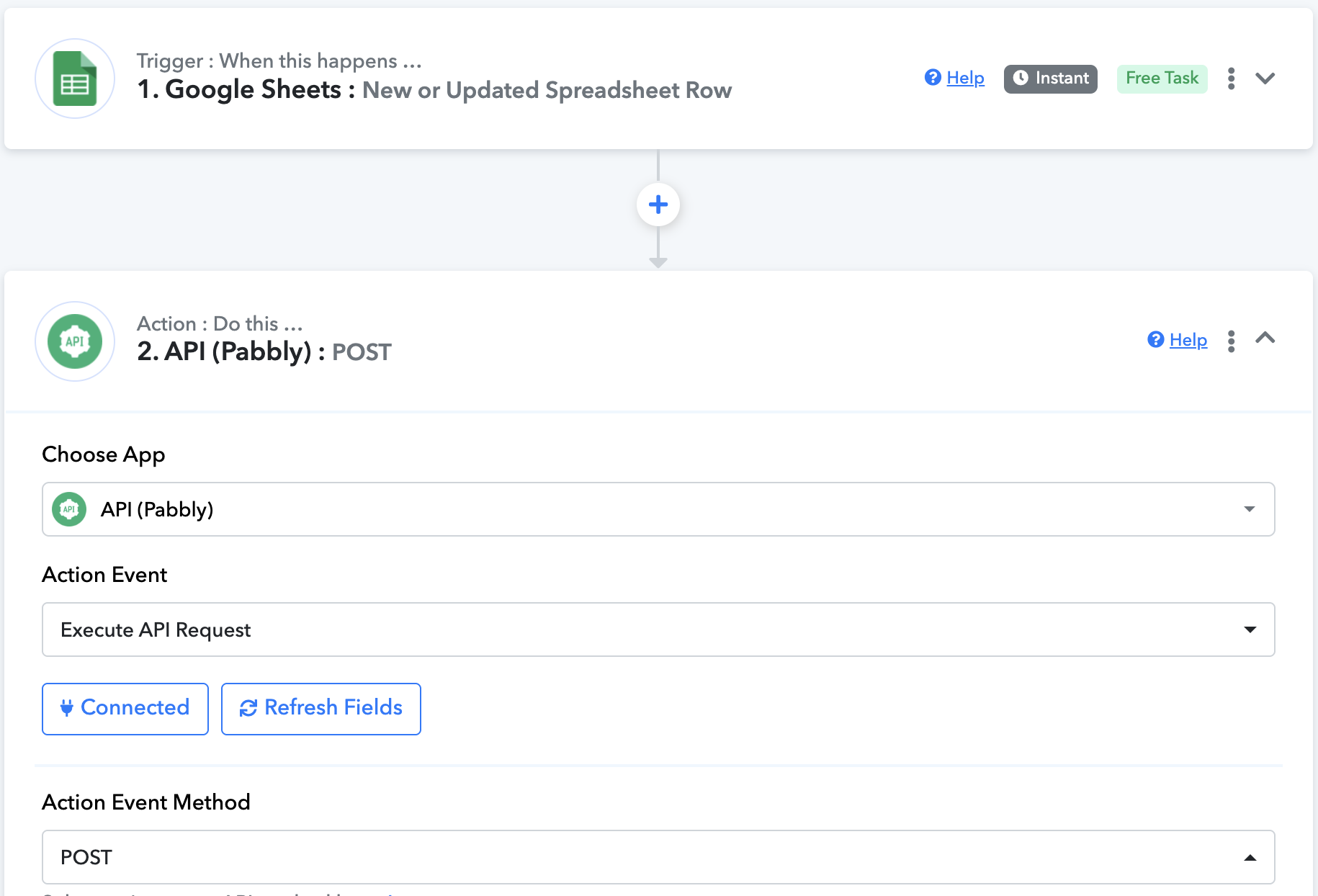
In your workflow, add an action step, choose the app API (Pabbly) and the action event Execute API Request.
Configure the request
Set Action Event Method to
POST, API Endpoint URL tohttps://wbiztool.com/api/v1/send_msg/, Payload Type to Form Data or JSON, and Authentication to No Auth.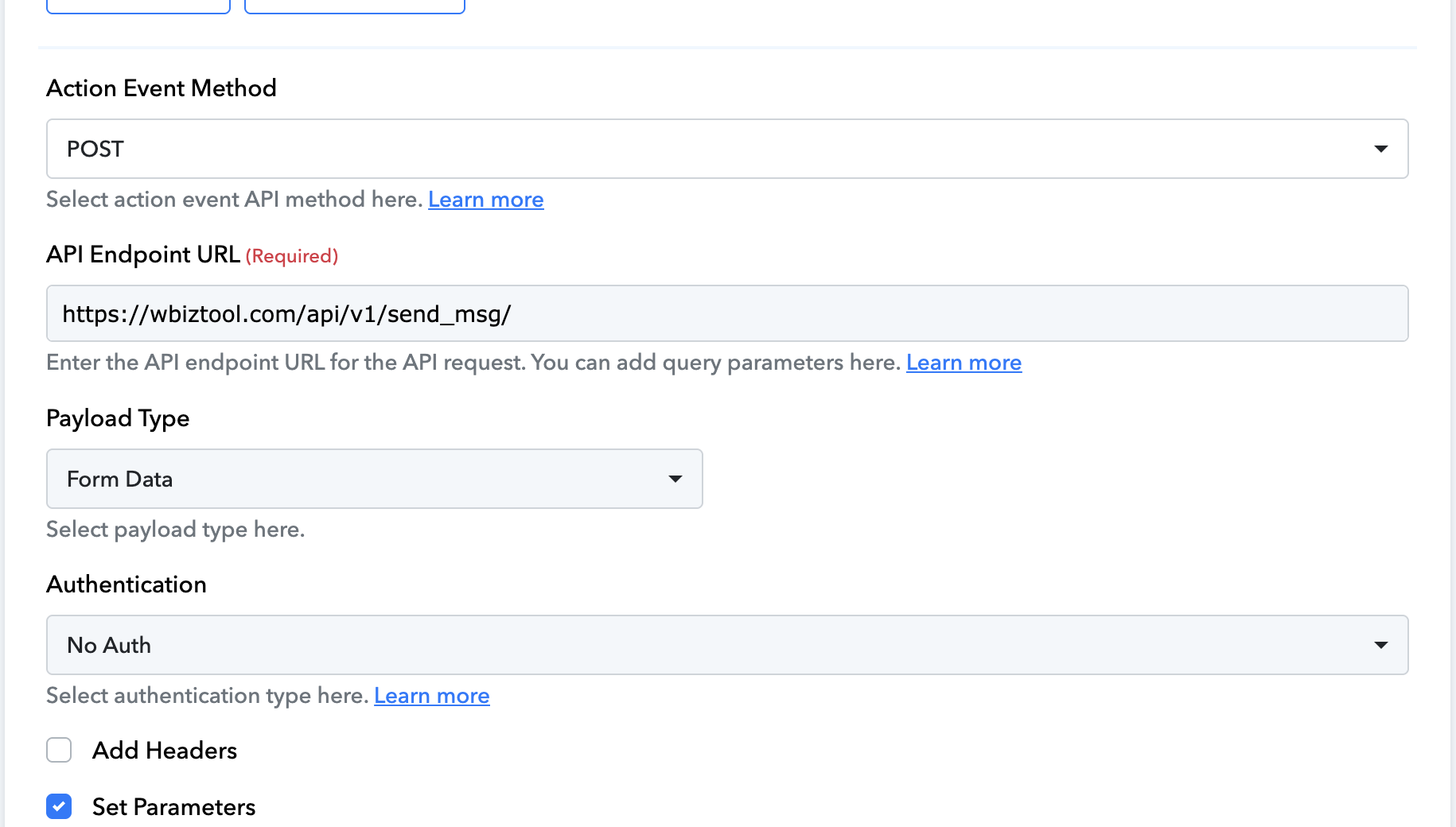
Set the parameters
Tick Set Parameters and add one row per body field:
client_id,api_key,whatsapp_client,phone,country_code,msgandmsg_type. Mapphoneandmsgfrom your trigger.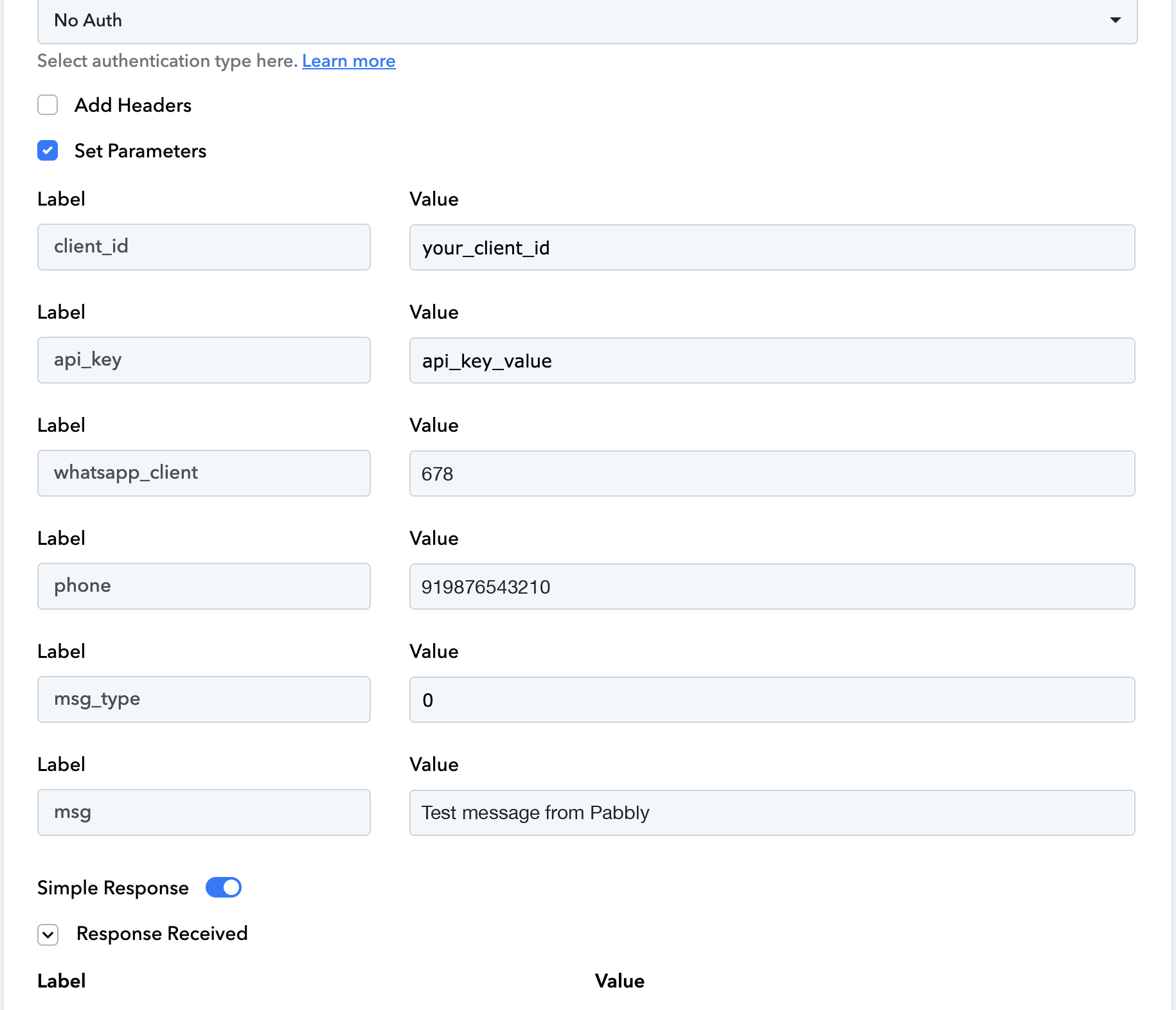
The screenshot leaves out
country_codebecause the test number already includes it.Save and send test request
Check that the response contains
"status": 1.
Albato#
Add the HTTP action
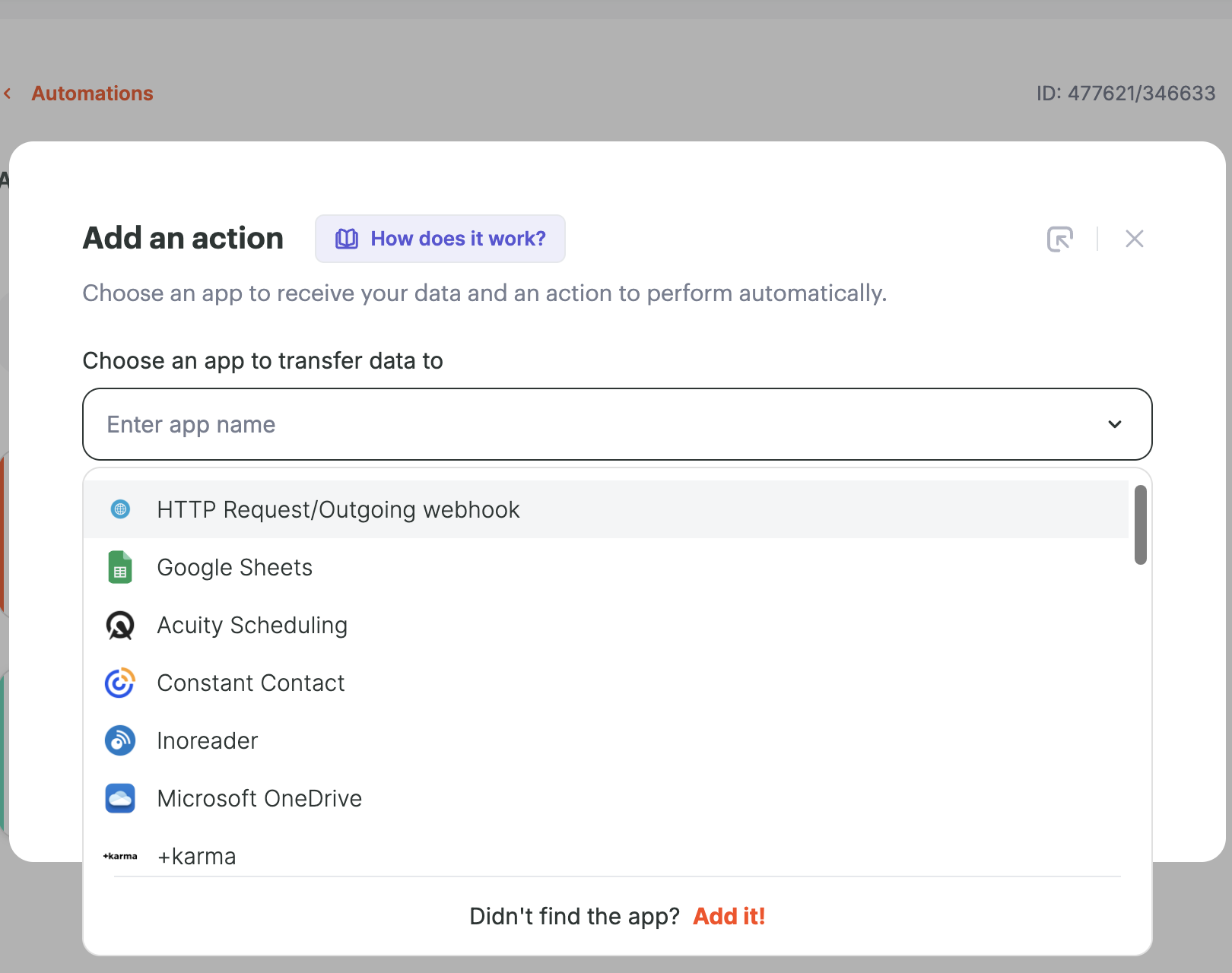
In your automation, add an action and choose HTTP Request/Outgoing webhook, then its Send request action. For example, use a Google Sheets New row created trigger to message each new row.
Create the connection
Give the connection a name such as "Wbiztool". You can enter
https://wbiztool.com/api/v1/send_msg/as its URL and set the content type to JSON.Map your fields
Set URL to
https://wbiztool.com/api/v1/send_msg/(if left empty, the connection URL is used) and Request method toPOST. Under Request parameters, addclient_id,api_key,whatsapp_client,msg_type,country_code,phoneandmsg, and pickphoneandmsgfrom your trigger's fields.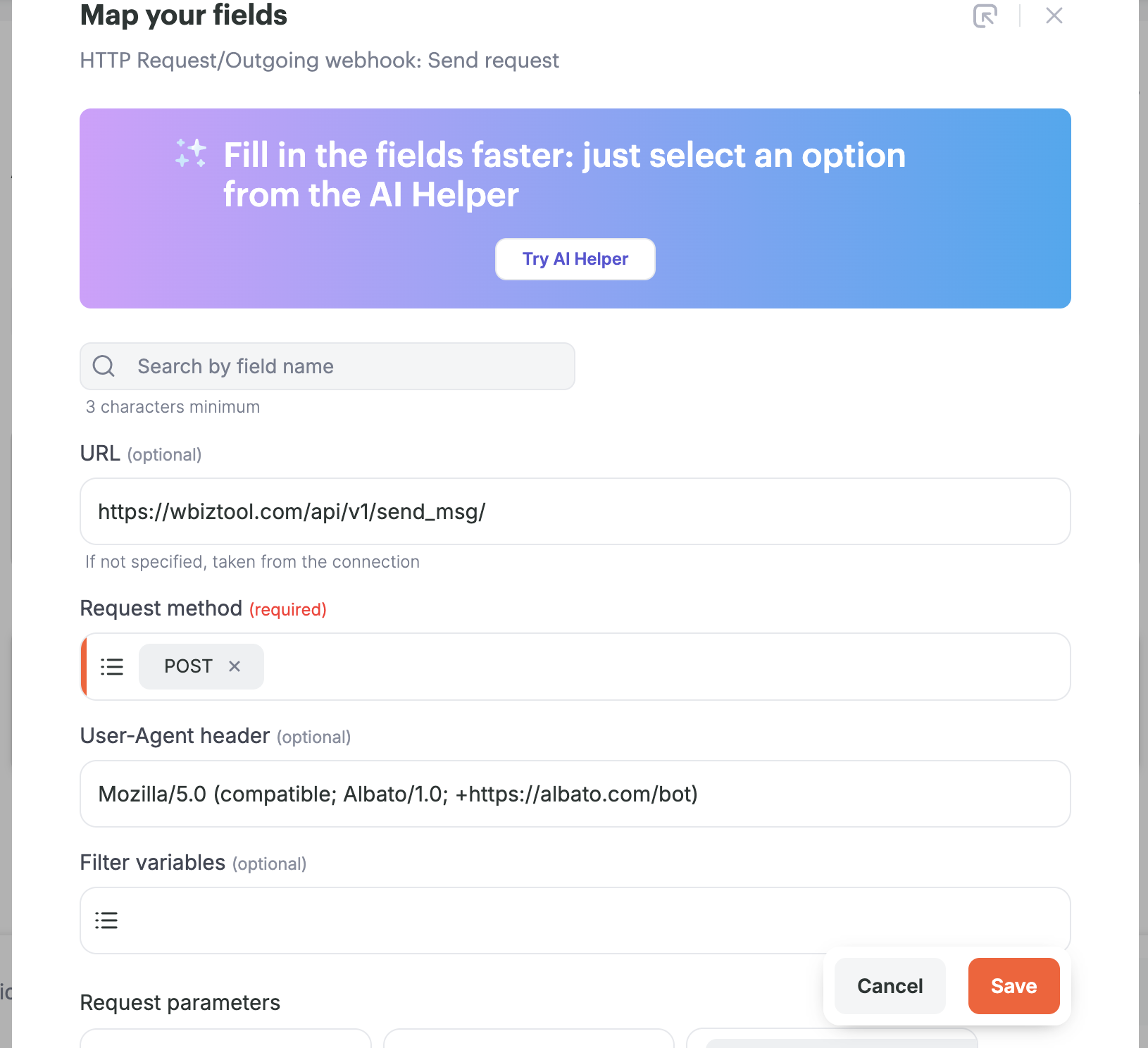
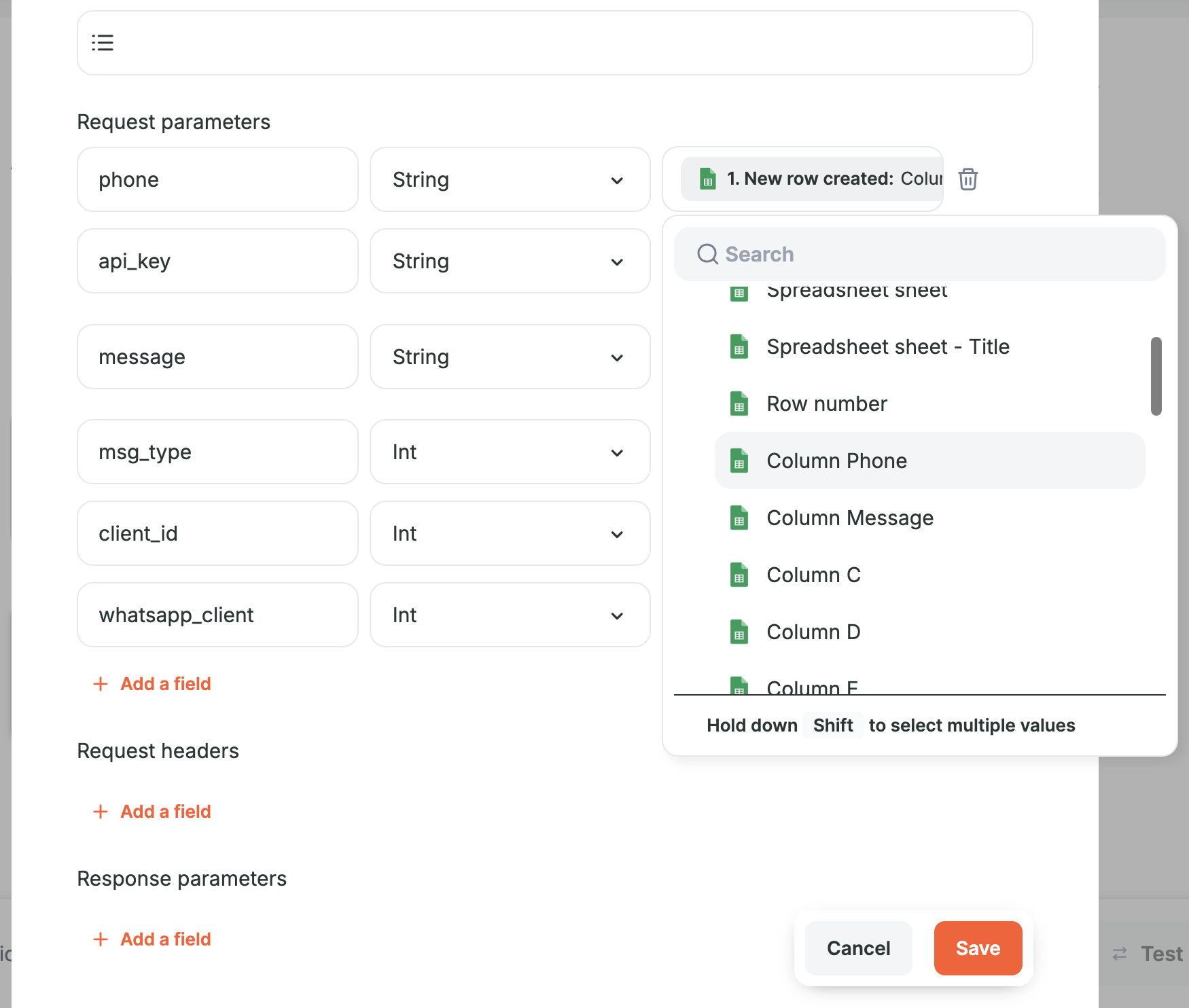
The screenshot uses
message, which works in place ofmsg. It leaves outcountry_codebecause the test number already includes it.Test and start
Run a test, confirm the response has
"status": 1, then start the automation.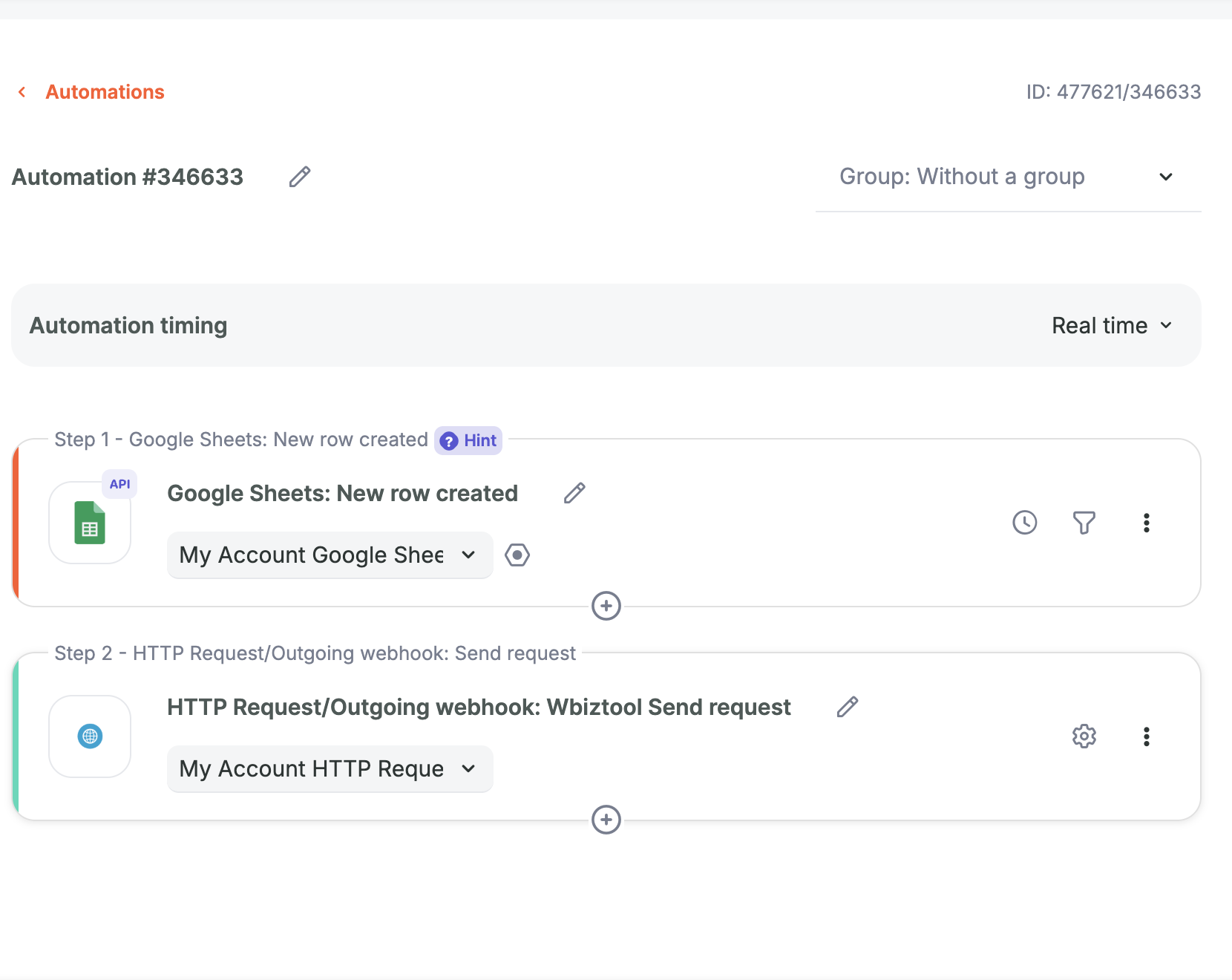
Activepieces#
Add the HTTP piece
Click + after your trigger and choose HTTP → Send HTTP request.
Configure the request
Set Method to
POSTand URL tohttps://wbiztool.com/api/v1/send_msg/. Choose JSON or Form Data as the Body Type.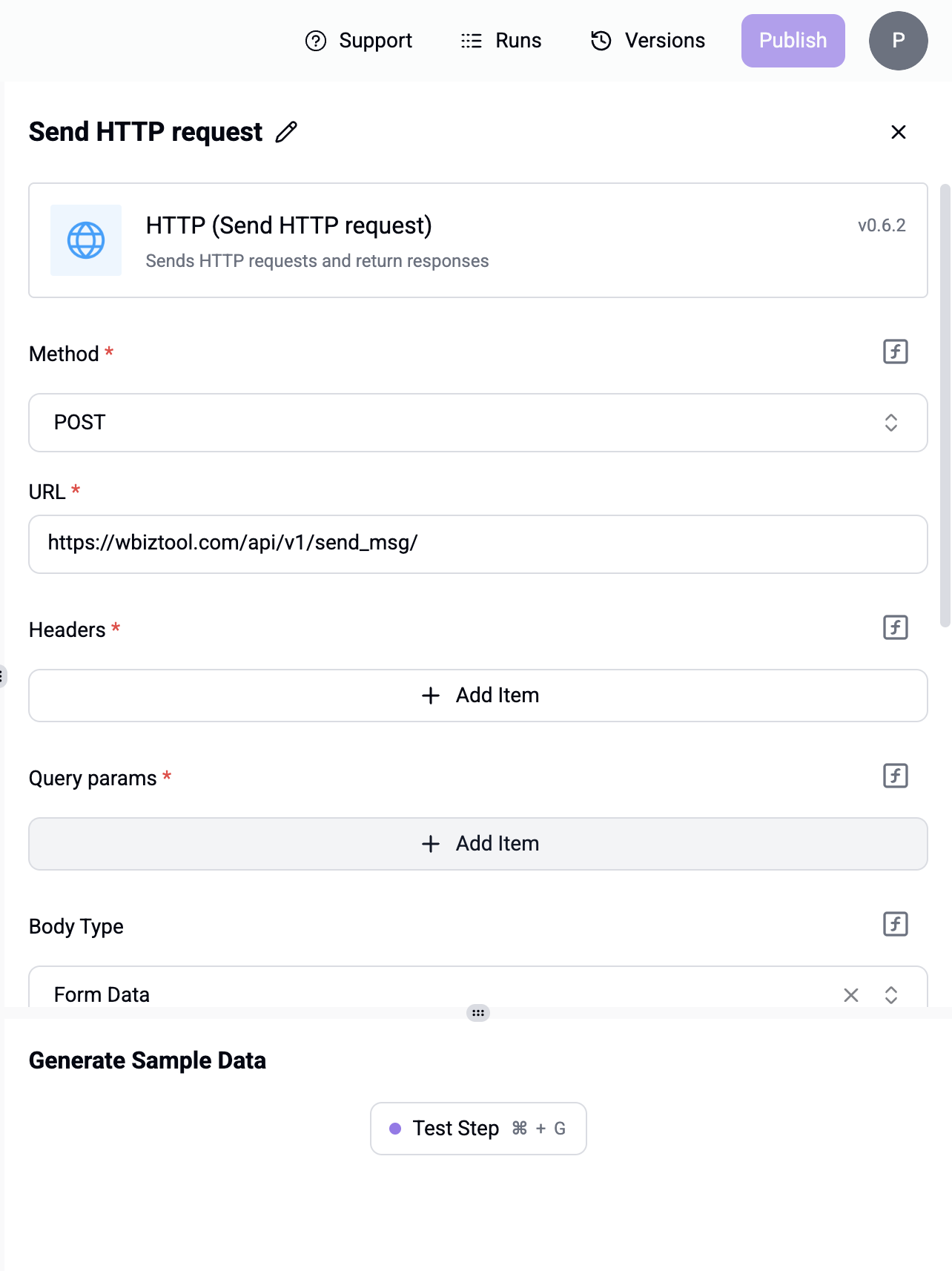
Add the body fields
Add one item per field. Use the Data Selector to insert values from your trigger into
phoneandmsg. Ifphonealready includes the country code (for example919876543210), you can leavecountry_codeout.Test the step
Click Test Step and check the response has
"status": 1, then publish the flow.
Make#
Use Make's HTTP module with the Make a request action. Set the method to POST, the URL to https://wbiztool.com/api/v1/send_msg/, the body type to JSON (raw, content type application/json) or form data, and fill in the body fields above.
Troubleshooting#
| Problem | What to check |
|---|---|
Auth Error: invalid api key | The key was deleted, has a typo, or belongs to a different workspace than the client_id. |
Invalid whatsapp client or Invalid whatsapp client id. | Use the WhatsApp Client ID from WhatsApp settings. It's required unless your workspace has exactly one connected number. |
Invalid phone number | The value contains letters or symbols other than spaces, dots, dashes, brackets and +, or has fewer than 6 or more than 17 digits. Map the phone column, not the name column. |
Invalid Contact Number "…" | The number is longer than 15 digits once the country code is added. Check that the phone value doesn't already include a different country code. |
Either phone or group_name parameter is required | The mapped phone value was empty for this run. |
Msg cant be null | The mapped message field was empty for this run. |
Image Url Can't be null or File Url Can't be null | msg_type is 1 or 2, but the mapped img_url or file_url was empty for this run. |
Invalid file url, Can't download or Invalid file url | The URL didn't return a file. It must be public: links that need a login, such as a private Google Drive link, don't work. |
Response is "status": 1 but nothing arrives | The message is queued until your WhatsApp number is connected. Check WhatsApp settings and Message status. |